What is an Order?
In the Klear platform, an Order represents a full commercial transaction between you, your customer, and any involved suppliers. It follows the complete order-to-cash lifecycle, from creation and fulfillment through delivery and final payment.
Each Order serves as a central workspace, storing all documents, events, and data associated with that transaction.
Below is the full step-by-step guide to creating and submitting an Order for review:
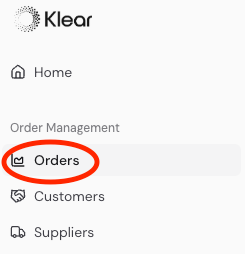
From the left navigation menu, select Orders.
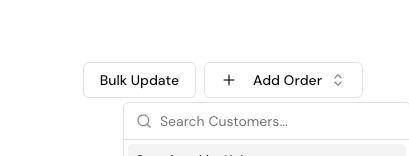
In the top-right corner, click ➕ Add Order. Select the Customer. Use the dropdown to select the customer this Order is associated with.
Note: You must add the customer first under the Customers tab. If the customer does not appear in this dropdown, they have not yet been added.
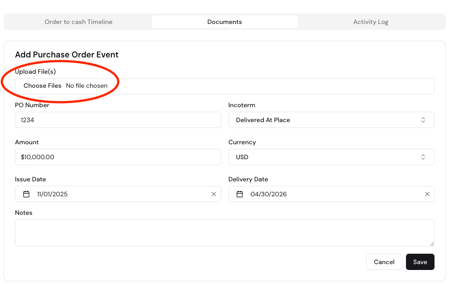
Upload the Purchase Order. Fill out the PO fields and click Save.
 Click + Add Event and select Add Invoice.
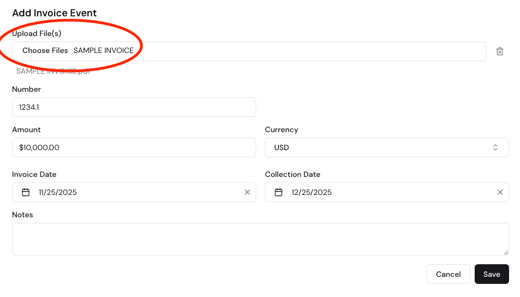
Upload your invoice and complete the invoice fields. Click Save.
Important Invoice Requirements:
- Invoice must be uploaded after issuance
- Issue date and due date must be accurate
- Invoice dates must match platform entries
- Buyer/payee must match the PO
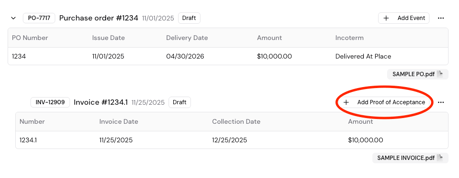
After saving the invoice, click + Add Proof of Acceptance.
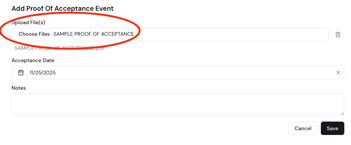 Proof of Acceptance (POA) is documentation from your customer that confirms that they have accepted the invoice and intend to pay it. It shows that the customer has formally acknowledged the invoice as valid and payable. Klear requires POA for every invoice before it can be funded.
Any of the following qualify as confirmation that the invoice has been accepted by the customer:
- Customer payment portal status showing the invoice as Accepted, Approved, Received, Scheduled, etc.
- Customer email confirming they’ve received and accepted the invoice.
- Signed or stamped invoice acceptance from your customer.
- Remittance acknowledgment indicating the invoice will be processed.
- Customer-issued acceptance document or confirmation notice.
As long as the customer has clearly acknowledged the invoice and intends to pay it, it qualifies as POA.
Note: Proof of Acceptance is required for every invoice before Klear can fund.
Once the PO, Invoice, and POA are uploaded, publish the events so your CSM is notified.
 Click the ⋯ (three-dot menu) to the right of the PO event → select Publish.
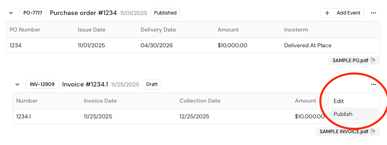
Click the ⋯ (three-dot menu) next to the invoice event → select Publish.
Publishing the invoice event automatically notifies your CSM that your invoice is ready for review and funding.
Note: Each Order and Invoice receives a unique identifier:
- Orders: TD-XXXX
- Invoices: INV-XXXXX