Key Concepts
- Payable = Payment Event linked to an approved PO and a Published Operational Event
- Lifecycle:
- Draft → when the payable is first created
- Published aka “Scheduled → when the payment is scheduled for a future or same-day date
- Completed → when the funds are sent
- Once completed, a Payable cannot be edited or deleted.
Steps to Create and Manage a Payable:
- Open a Trade with an Approved PO
- Go to Trades → select a Trade an Approved PO.
- Create Operational Event
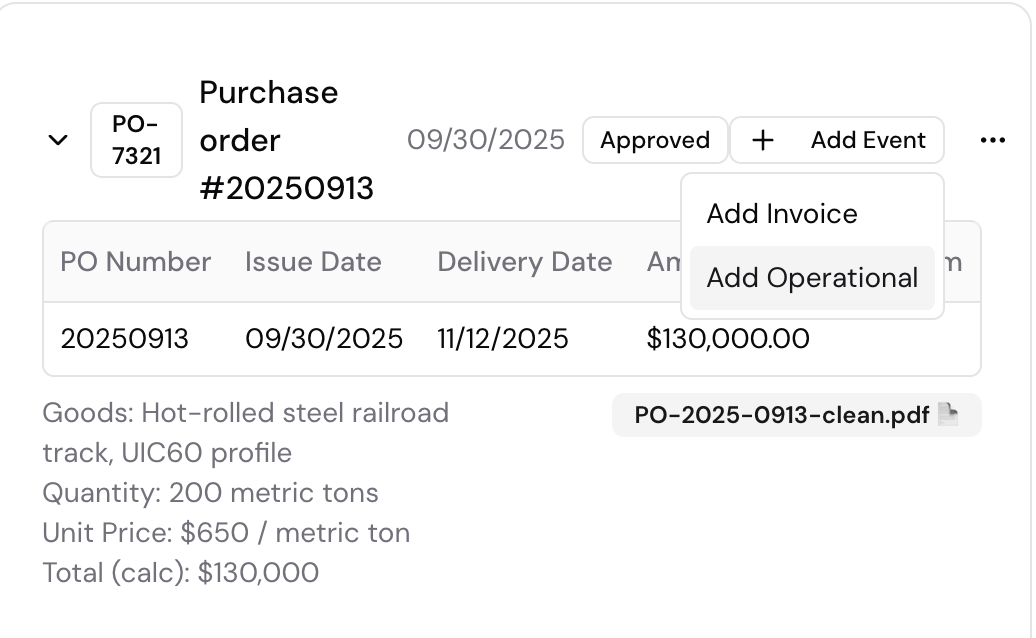
- Add a New Payable
- Click “Add Payment Event”.
- Fill in or edit:
- Amount
- Payment Date
- Source
- Network
- Destination Account (tied to Supplier)
- Notes
- Click “Save” – status becomes “Draft”
- → Expected Result: the Payable saves in Draft status
- Schedule (Publish) a Payable
- When you are ready to confirm the payment date, click : and select Publish
- Expected Result: status changes from Draft → Published & your payment is now scheduled for the chosen date.
- Complete (Send Now) a Payable
- If you need to execute the payment immediately, click : and select Complete
- Expected result: Status changes from Published → Completed, the payment is processed right away and you receive a confirmation email with the subject line “Payment Pay-XXX has been completed and is now processing”
Common Questions:
- Can I schedule multiple payables for one trade?
- Yes. A payable can be split up into partial payments and can be added separately
- How can I delete my Payable?
- Click “:” and select Delete while the Payable is still in Draft
- Expected result: the payable is removed from the trade timeline. Note: Payables cannot be deleted once completed.
- How can I edit my Payable?
- Click the “:” menu next to your Payable, then select Edit. You can update the amount, date, or notes for a ‘Draft’ or ‘Published’ Payable.
- Expected result: the changes save successfully and your payment returns to ‘Draft’ status
- Why can’t I delete my Payable?
- Once a payable is completed, it cannot be deleted. If you are not sure about your payable, we advise you to publish it for a date in the future
- What happens if there are insufficient funds?
- If your Klear Account balance is too low on the scheduled date, the payment will fail. You will receive an alert via email and you will need to re-schedule or re-sent the payment manually.
Troubleshooting:
|
Issue |
Likely Cause |
Resolution |
|
“Add Payment” button missing |
Any combination of the above. |
|
|
Payment not saving |
Missing required fields |
Ensure amount, date, source and destination are filled |
|
Error on publish |
Invalid payment date |
Use a valid future or same-day date |
|
Status not updating |
Browser cache or network delay |
Refresh or check /Payables view directly |
Support
If you’re unable to add, edit, or complete a Payment Event after following these steps, contact us at 📩 support@klearbusiness.com.